

How to style all pages using the Design View
Learn how to use Design View to style your wireframes and get a visual preview of your site before exporting to Figma or Webflow.
In this doc, you'll learn how to:
- Edit color schemes manually
- Add images to interior pages
What is Design View?
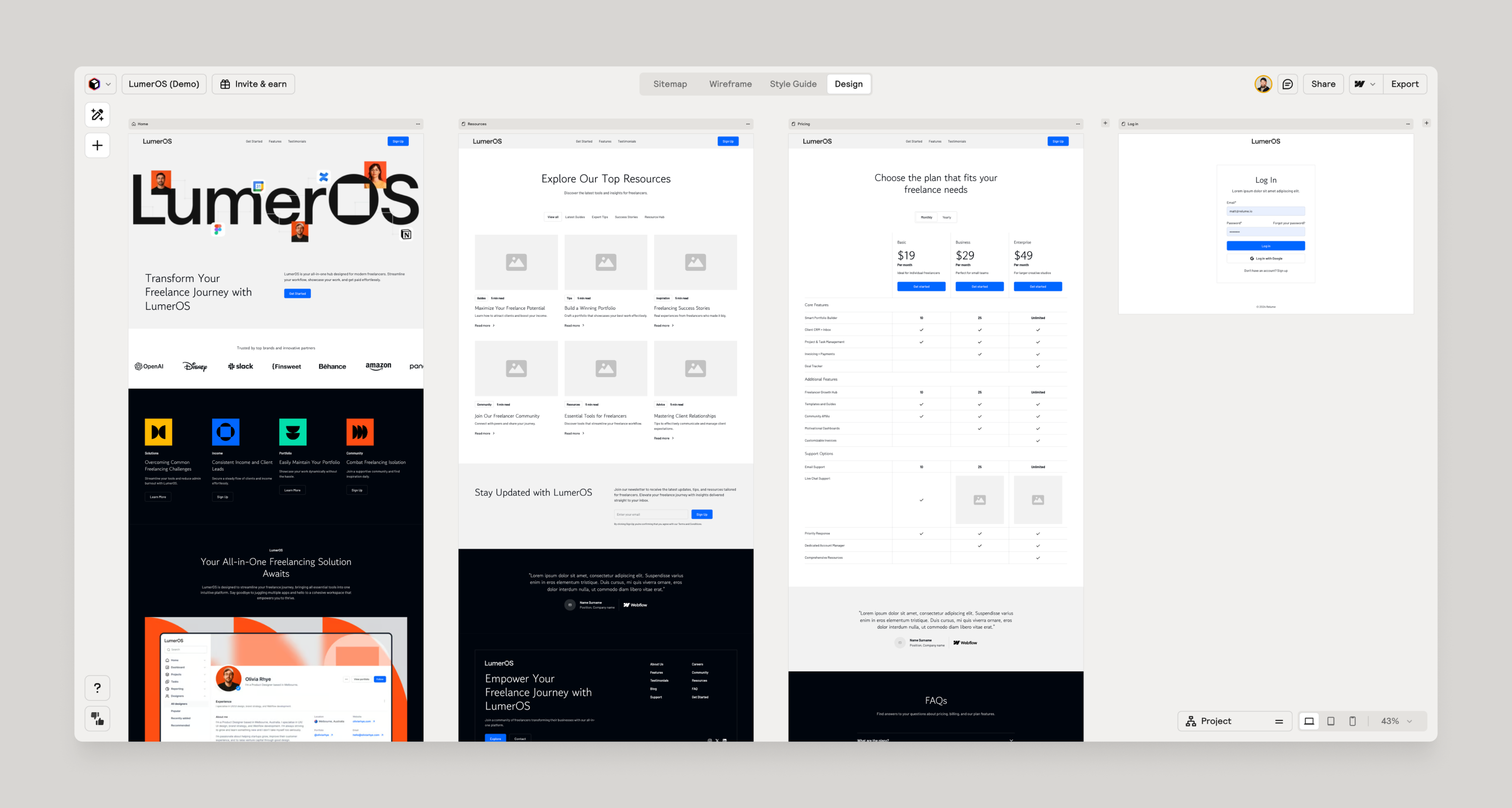
Design View is a lightning-fast styling tool built directly into the Relume Site Builder. Once you've built your sitemap and wireframe, Design View instantly applies your Style Guide - including colors, typography, and UI elements - across your entire site so you can see what it looks like before exporting to Figma or Webflow.
Think of Design View as your design accelerator, not your final canvas. It gets you 80% of the way to a finished design in a fraction of the time - so when you do export, you're refining and polishing rather than starting from scratch.
Edit color schemes manually
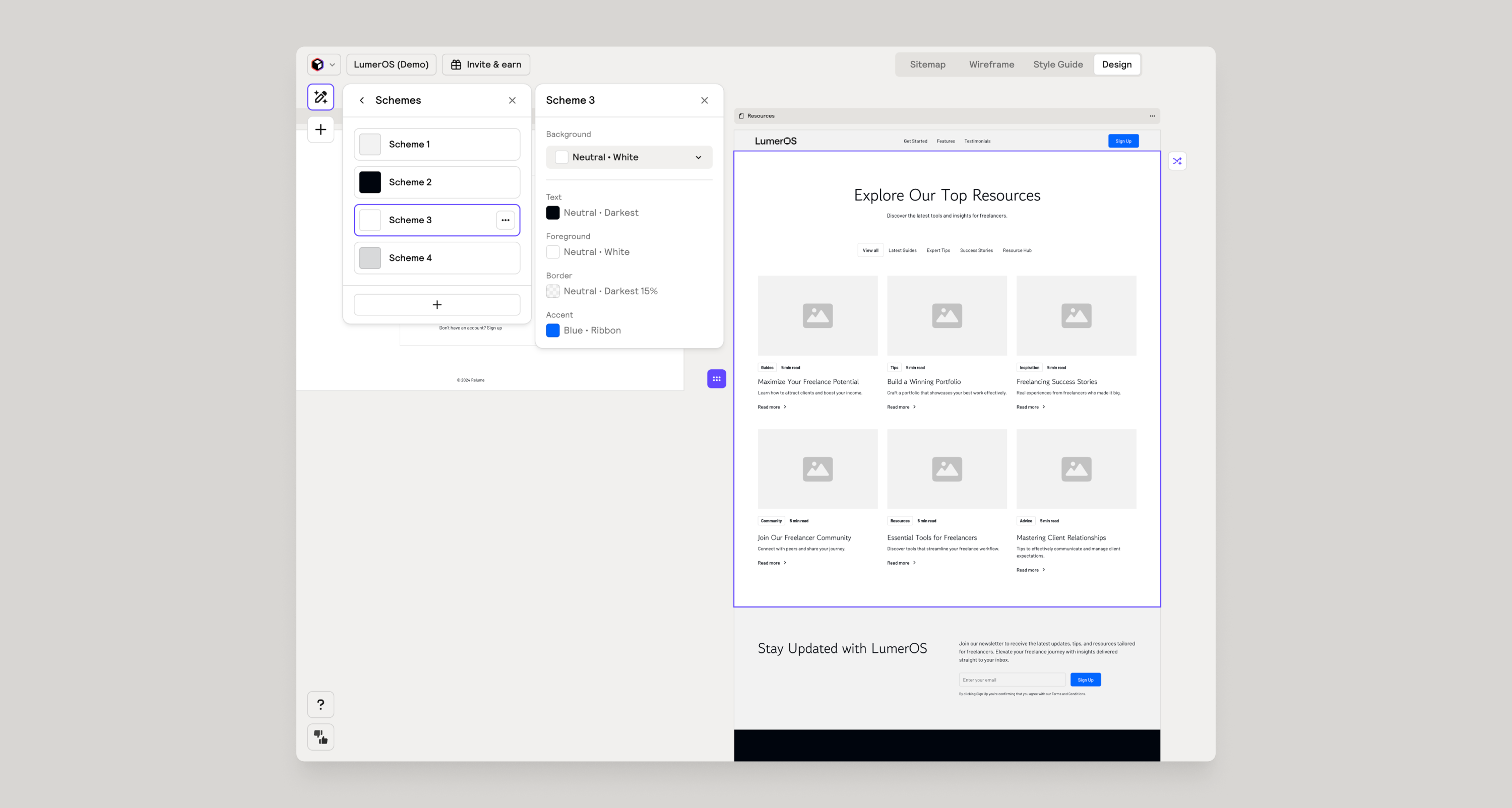
Color schemes control the background, text, foreground, border, and accent colors for each section in Design View.
To edit color schemes:
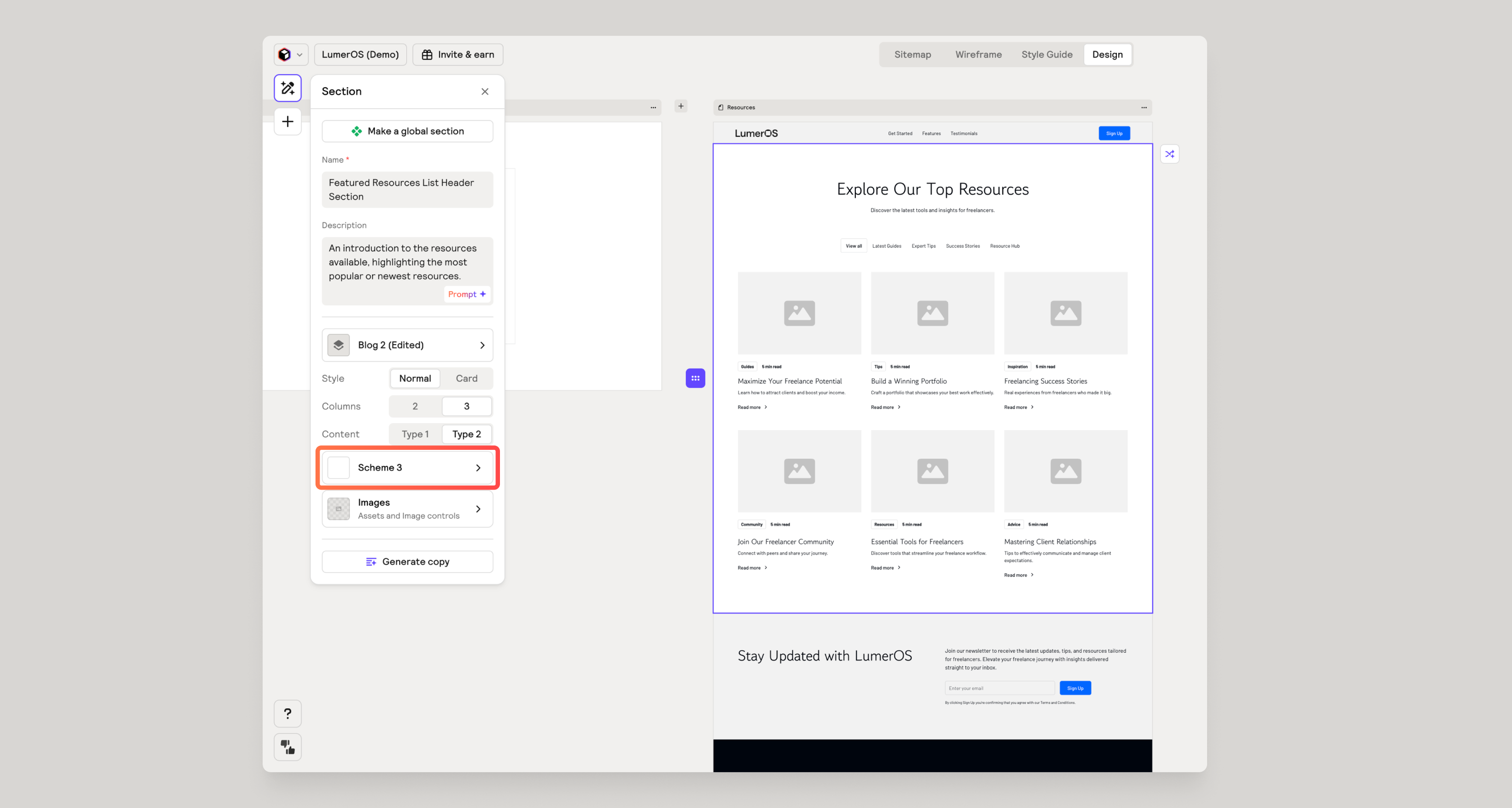
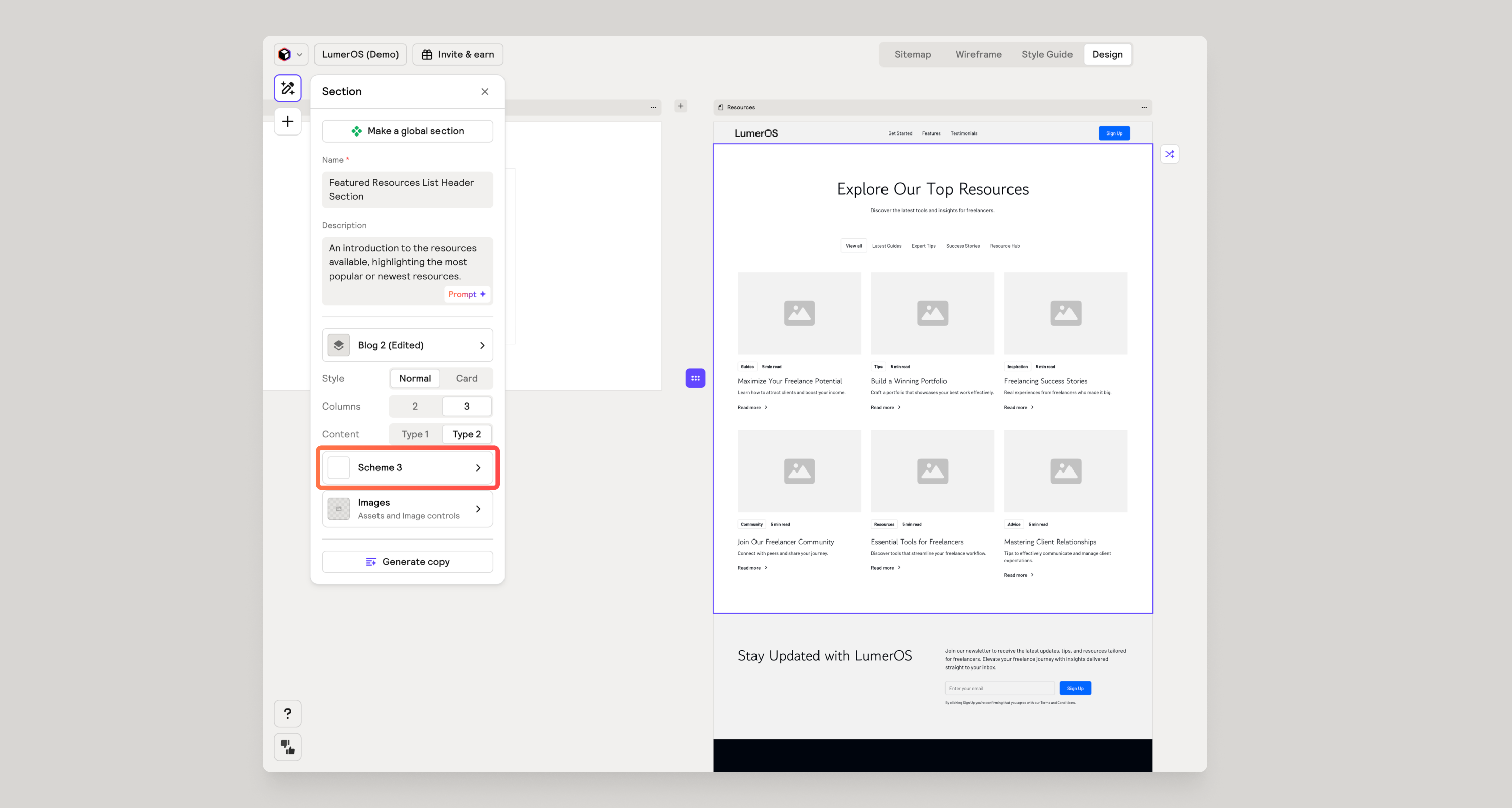
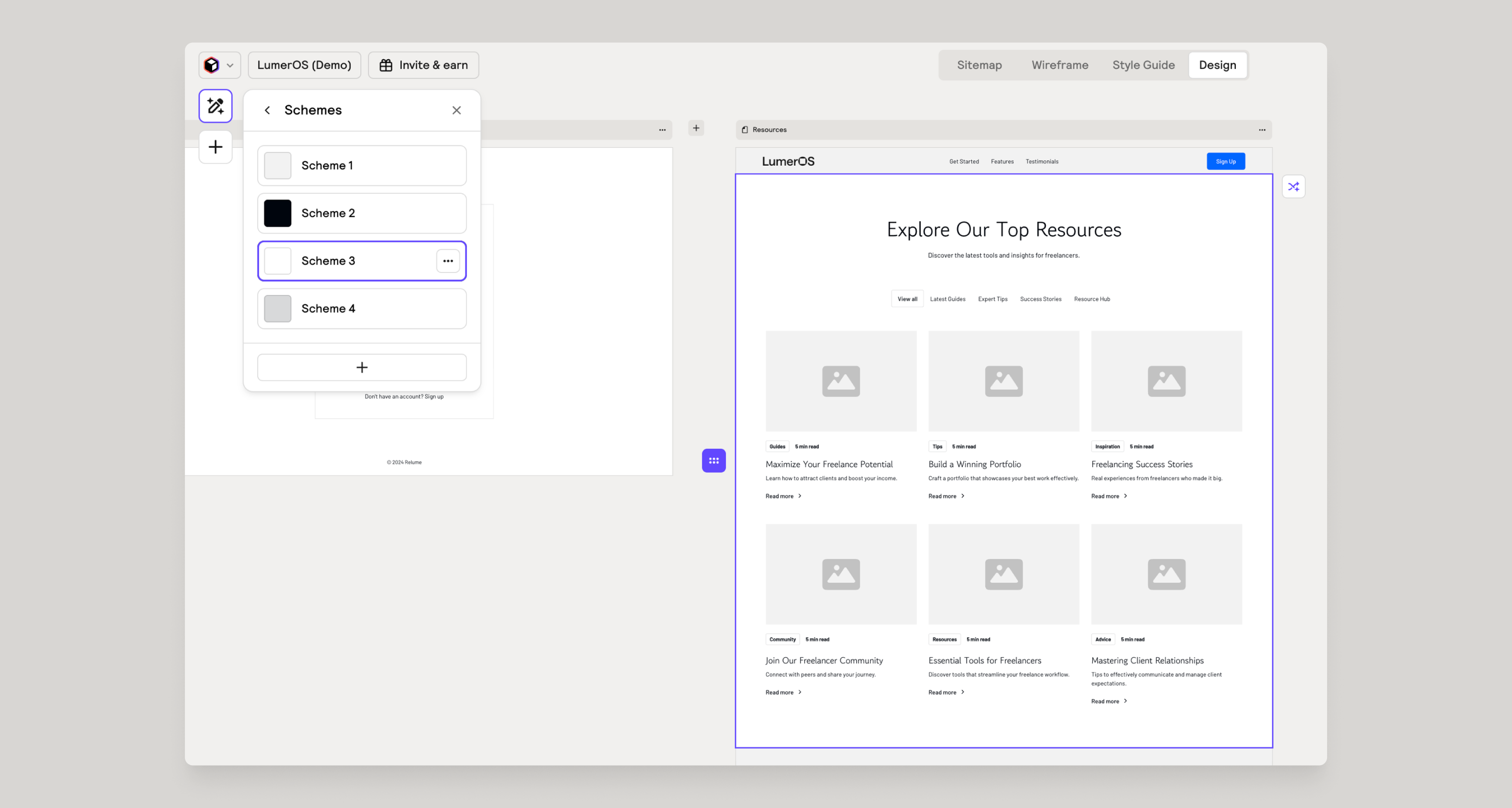
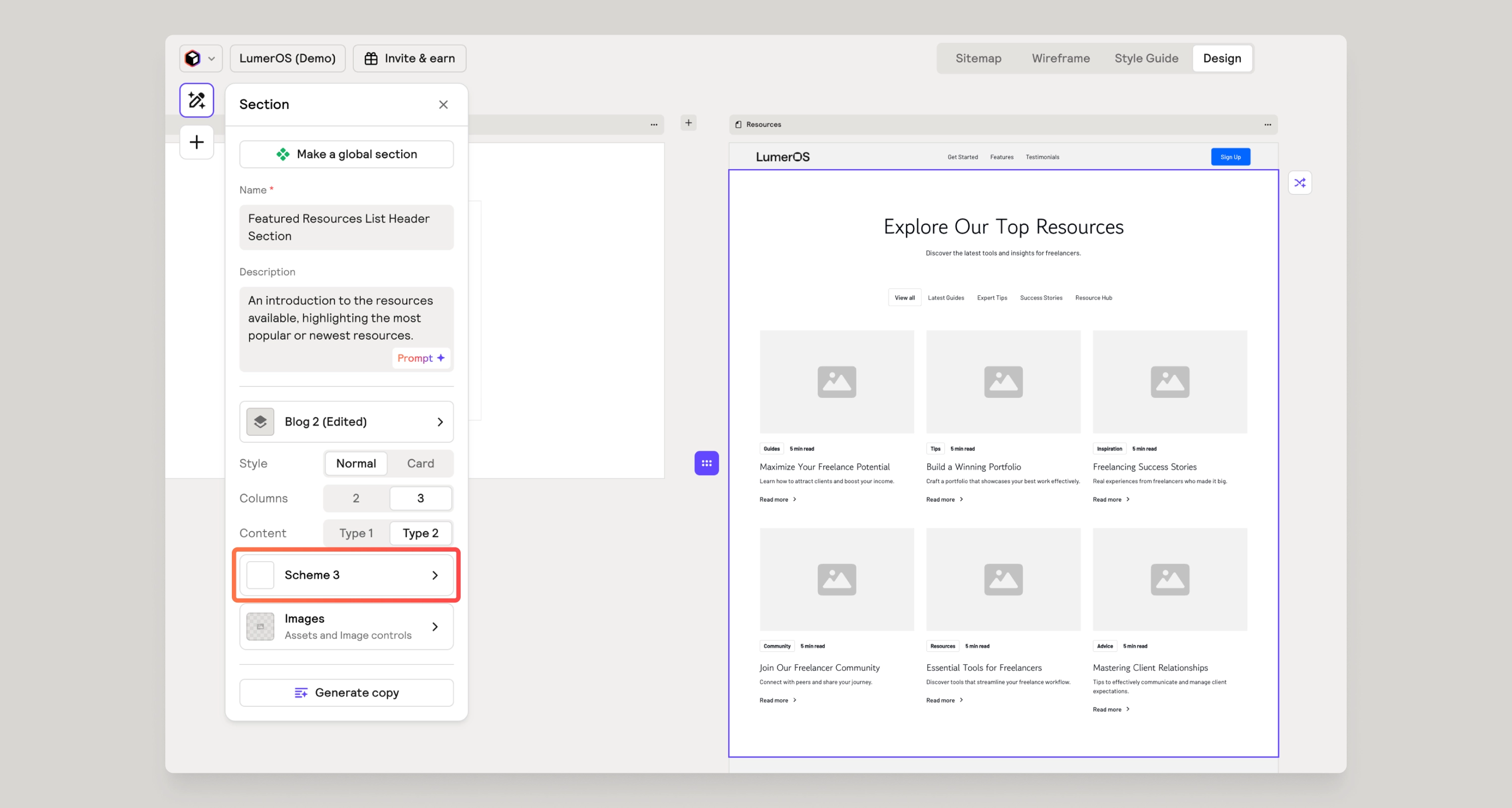
- Click on the Scheme button to open up the list of color schemes that are in the project.
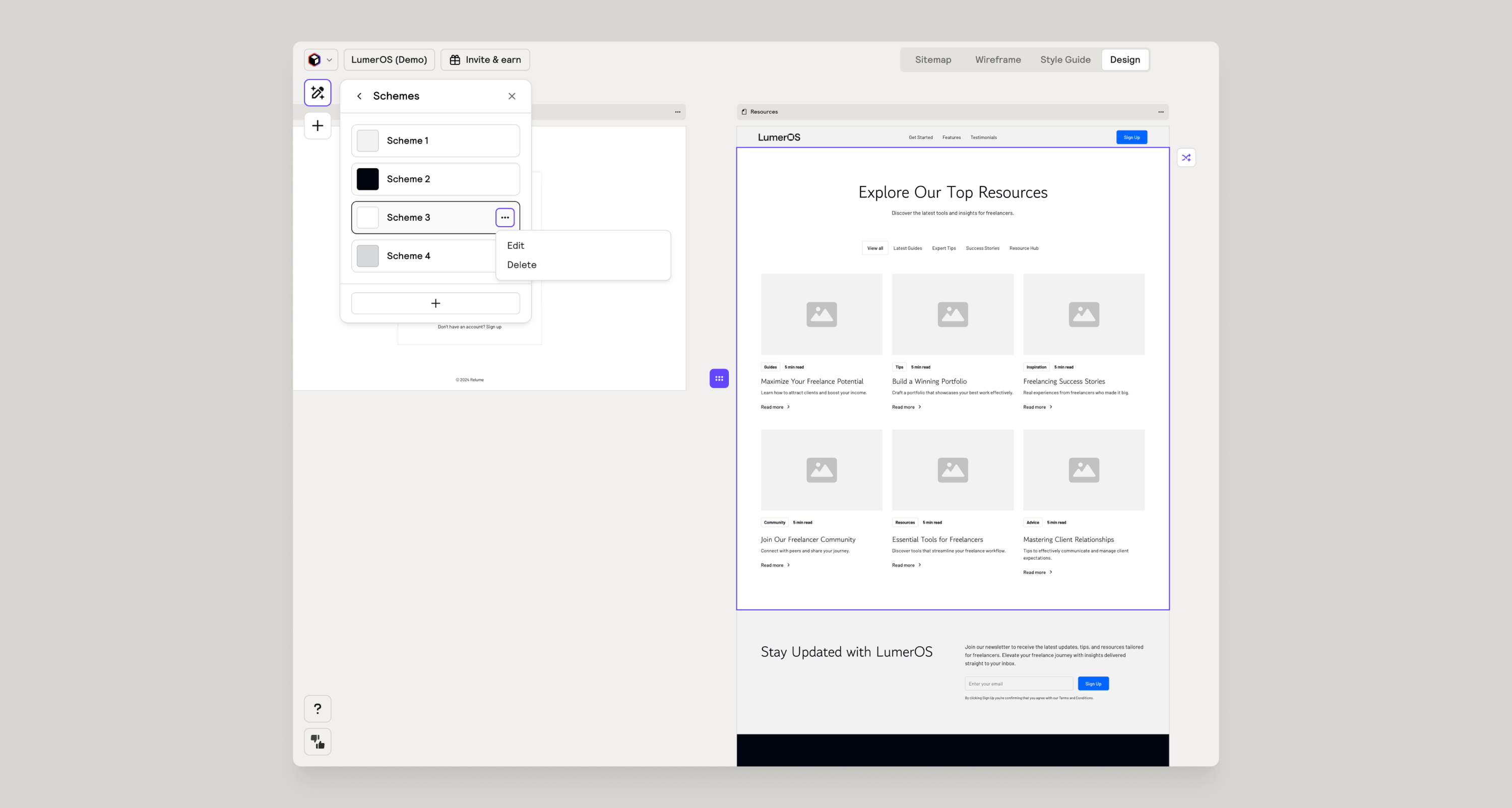
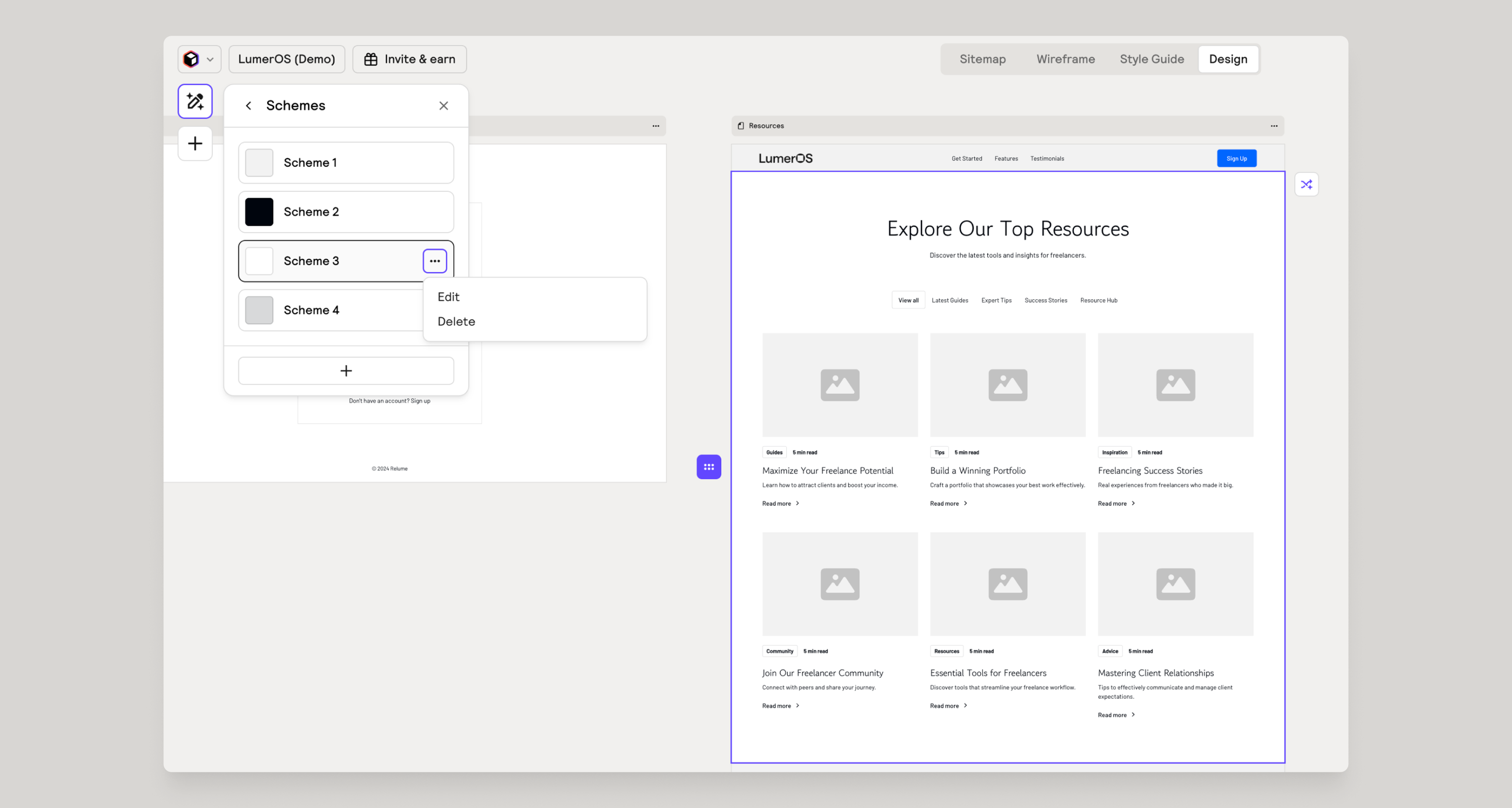
- Hover over a scheme and click on the 3 dot button.
- Click Edit to view all of the primitive colors in the project.
- You can only edit the background color - editing the text, border, or accent colors are done automatically and are intentionally not customizable.
Applying a color scheme to a section
- Click on any section in Design View to select it
- Clicking on the schemes button will open a menu for you to choose any existing color scheme that exists in the project.
Adding a new color scheme
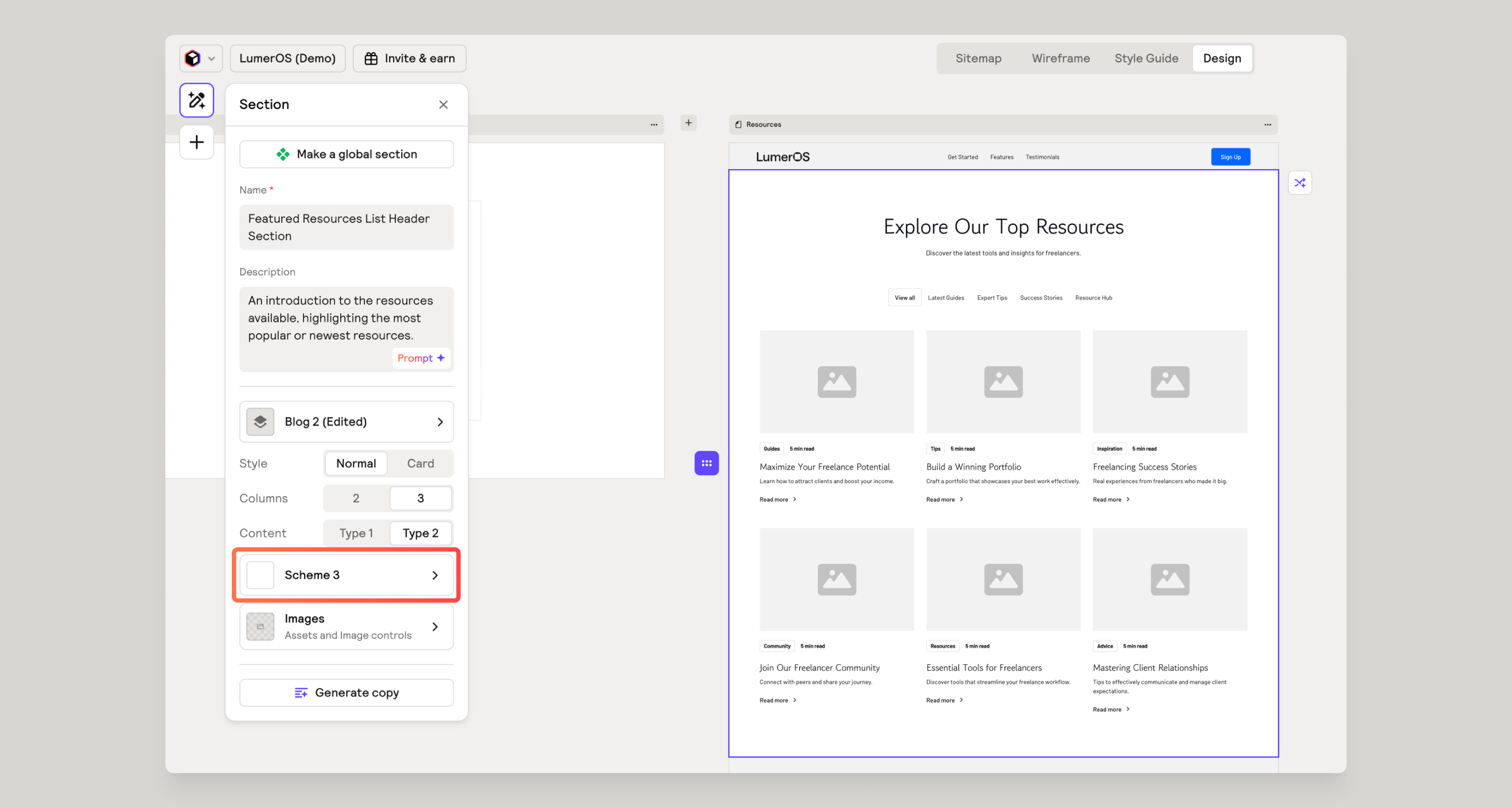
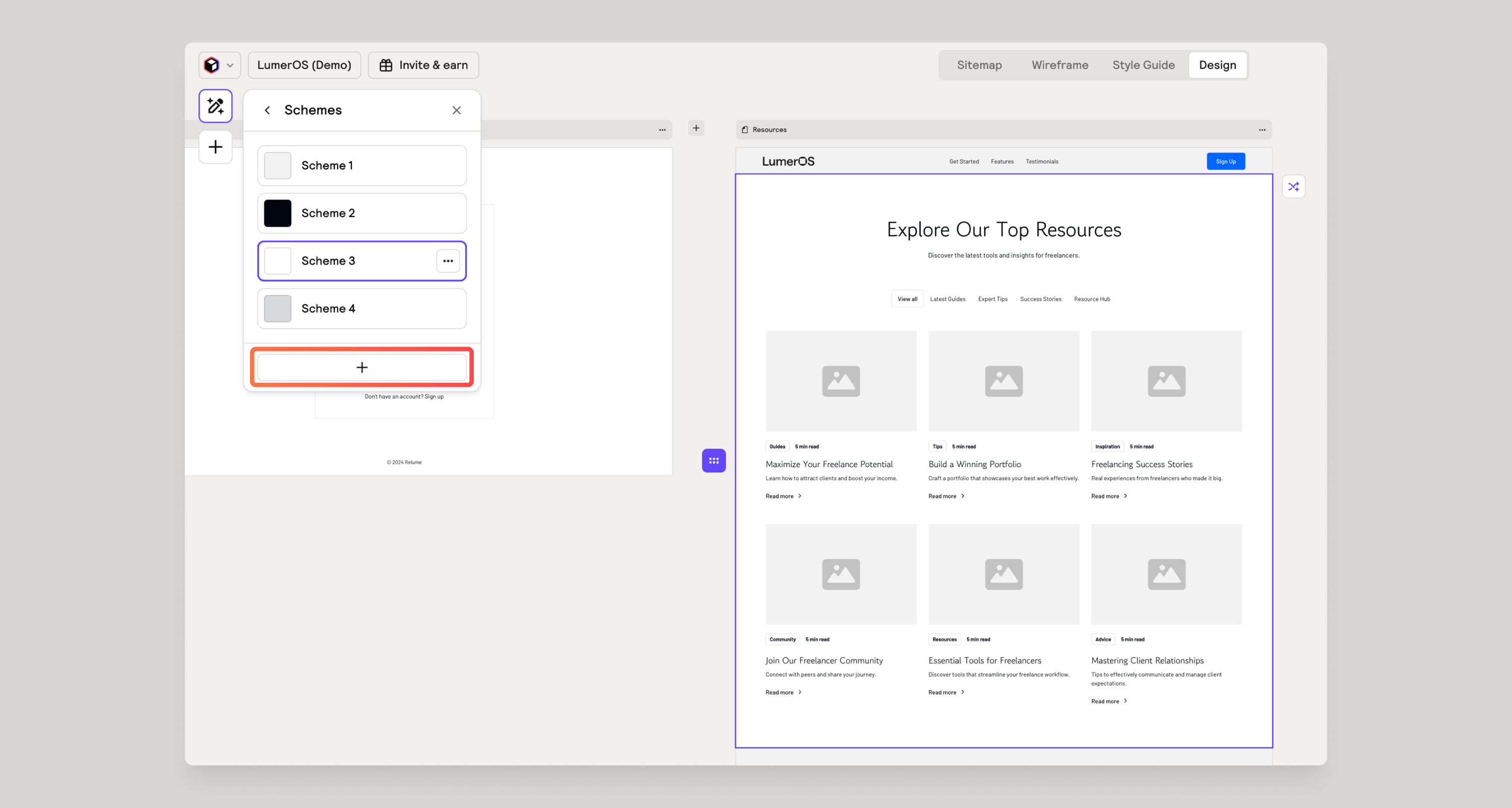
- Click on the schemes button
- Click the + button to add a new scheme
Again, you will only be able to choose a background color, the rest of the elements colors are set automatically.
Removing a color scheme
- Click on the schemes button
- Hover over a scheme
- Click on the three dot menu
- Click on delete
Add images to interior pages
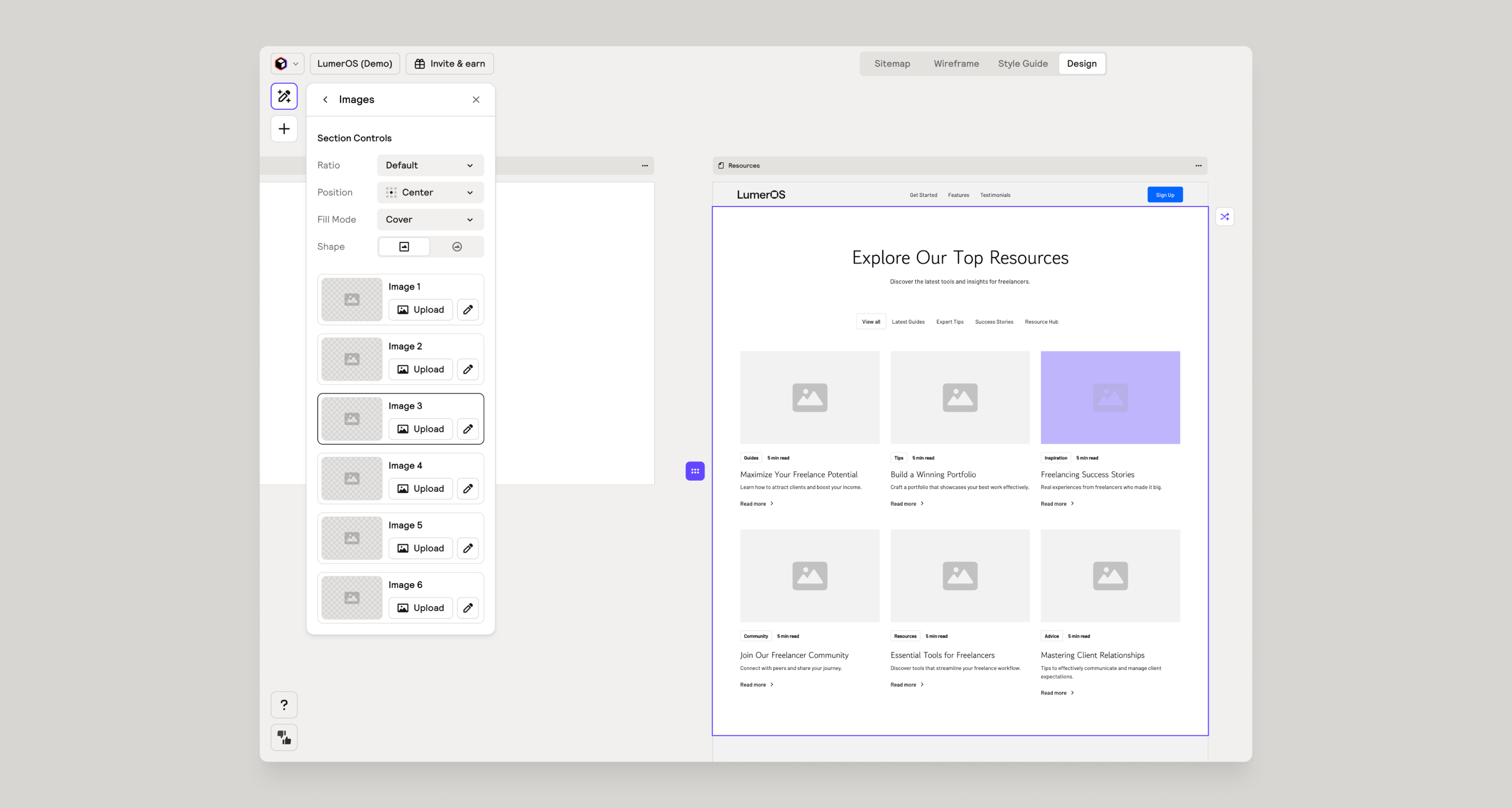
If you click on a section that has images, you will notice an “Images” button in the panel. Clicking on this button will bring you to a list of images where you can quickly swap out images for the entire section.
Give feedback
Was this resource helpful?


For account-related issues, please contact support@relume.io.
